> For the complete documentation index, see [llms.txt](https://docs.growthfactor.ai/llms.txt). Markdown versions of documentation pages are available by appending `.md` to page URLs; this page is available as [Markdown](https://docs.growthfactor.ai/study/sharing-and-exporting-studies.md).
# Sharing and Exporting Studies
## Private and Shared Studies
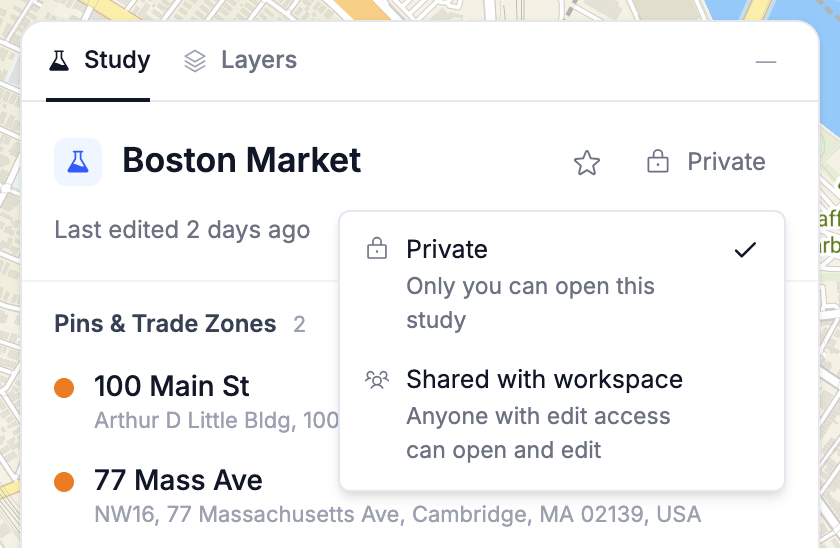
Every new study is **Private** — only the person who created it can open it. Sharing is a switch the creator flips when the work is ready for the rest of the team.
Each row on the **Studies** page shows its visibility as **Private** or **Shared**, and the toggle above the list filters by **All**, **Private**, **Shared**, or **Archived**.
***
## Sharing with Your Workspace
Open the study and click the **Private** / **Shared** control at the top of the right panel, then choose **Private** or **Shared with workspace**. You can do the same from the **⋯** menu next to any study on the **Studies** page, where the action reads **Share with workspace** or **Make private**.
Either way you'll see a confirmation — `"…" shared with workspace` or `"…" made private`. If it fails, **Couldn't update sharing**.
Only the study's creator can change this. Everyone else sees the visibility as a plain label with the tooltip **"Only the study's creator can change share settings."**
***
## Who Can See and Edit a Study
Sharing a study doesn't invite specific people — it hands the study to its workspace. From there, workspace permissions decide who can do what.
| Role | Open | Edit | Change sharing | Archive |
| -------------------- | ---- | ---- | -------------- | ------- |
| **Creator** | Yes | Yes | Yes | Yes |
| **Workspace editor** | Yes | Yes | No | Yes |
| **Workspace viewer** | Yes | No | No | No |
See [Members](/getting-started/members.md) for how workspace roles are assigned.
### Editors
Anyone with edit access to the study's workspace works in a shared study exactly as the creator does — pins, shapes, annotations, analysis, renaming, and archiving. The one thing reserved for the creator is the sharing switch.
### Viewers
Read-only members can open a shared study and read all of it, including annotation threads, but can't change anything. They also don't get the **New study** button, since creating a study takes edit access.
{% hint style="info" %}
Workspace access carries down the workspace tree. Someone with edit access to a parent workspace can edit studies shared in the workspaces beneath it.
{% endhint %}
***
## Working in a View-Only Study
If you don't have edit access to a study's workspace, the study opens with a **View only** badge and the note **"This is a view-only study."**
Everything stays readable. Pins, shapes, analysis, and annotation threads all open normally, but the editing surface is gone. The map toolbar is hidden, tool shortcuts and undo/redo are off, right-click menus are disabled, and comment boxes don't appear. Auto-naming is skipped and the agent panel is hidden. Because **Export** sits in the map toolbar, it isn't reachable while a study is read-only.
If you're a member of another workspace that has edit access to this one — for example, you administer the study's parent workspace but are currently viewing a sibling — a prompt reading **Editing is off here** appears over the map, naming the workspace the study belongs to. Click **Switch to \[workspace name]** to switch into it and start editing.
***
## Archived Studies
Archiving is how you get a study out of the way. Pick **Archive** from the study's **⋯** menu and confirm; the study is hidden from **Recents** and the studies list, but nothing is destroyed. There is no separate permanent-delete action.
Archived studies live behind the **Archived** filter on the **Studies** page. Open one and it's read-only with an **"Archived — read-only."** banner; click **Unarchive** there, or in the row's **⋯** menu, to bring it back (**Study restored**). Any editor can archive or restore a study, not just its creator.
***
## Exporting a Study
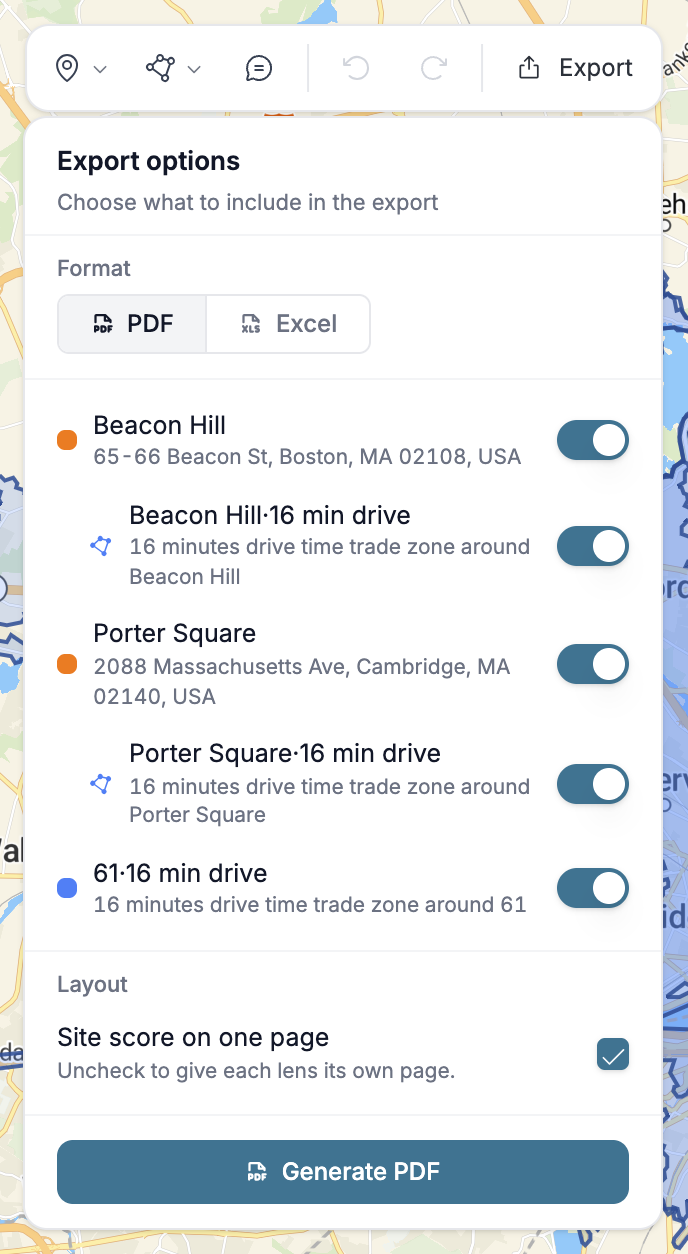
Click **Export** in the map toolbar to open **Export options** — one menu for both formats. Pick the format, choose what goes in, then use the button at the bottom, which reads **Generate PDF** or **Download Excel** (**Exporting…** while it runs).
### PDF
A finished document: table of contents, a cover page with the overview map, then a page or more for each included pin and shape, carrying its data — demographics (including any variables configured for your workspace), foot traffic, vehicle traffic, comparable stores, cannibalization, sales forecast, site score, AI Insights, and evaluation history from any custom evaluators that have run on that pin. Each pin with an address gets an **AI Insights** page with the summary and its sources. Which of those appear depends on what's enabled for your organization.
Generating a PDF re-runs the analysis and captures fresh map images, so it takes a moment. Evaluation history is the exception — past runs print as they stand, and exporting never evaluates a location. The progress pill moves through **Preparing export**, **Running operations**, **Capturing maps**, and **Rendering PDF** before **Study exported**. The file downloads as the study name plus the date, ending in `.pdf`.
If a section can't load during the export, its place in the PDF shows a **Couldn't load this section** notice instead of its data. A section with no data still reads **Data not available.** When some sections fail, the download still starts and the message reads **Download started** followed by how many sections couldn't load, for example **2 sections couldn't load**. Generate the PDF again to retry.
{% hint style="info" %}
A study with a lot of pins and shapes included can be too large to export in one request. If that happens, an error message tells you the study may be too large to send at once. Uncheck some locations in **Export options** and try again.
{% endhint %}
### Excel
A workbook for pulling numbers into your own model, with up to five sheets: **Study**, **Comparables**, **Cannibalization**, **Vehicle traffic**, and **Agent transcript**. The demographic figures in the **Study** sheet include any variables configured for your workspace. It downloads as the study name with an `.xlsx` extension. Excel carries no map images.
### Map Image
To capture just the map, click the camera button (**Screenshot map**) in the map toolbar and choose **Copy to clipboard** or **Download**. The image keeps your current zoom and the layers you have switched on. **Copy to clipboard** puts a PNG on your clipboard so you can paste it straight into a document or message. A **Map copied** message confirms it. **Download** saves a JPEG and shows **Map saved**. If the copy fails, **Couldn't copy the map** appears. Some browsers can't copy images.
### Choosing What to Include
* **Format** — **PDF** or **Excel**.
* The list below it — one row per pin and shape; switch off anything you don't want. Trade zones sit nested under the pin they belong to.
* **Appendix** — **Agent transcript**, plus **Annotations** and **Evaluation history** (both PDF only).
* **Layout** — **Site score on one page**, with **"Uncheck to give each lens its own page."** (PDF only.)
The menu only offers what applies to the study in front of you. The score layout option is hidden when no pins are included. The transcript and annotation rows appear only when there's one to include, and **Evaluation history** only when the study has a pin of its own in the export. With an empty map it reads **Nothing to export yet** and the button is disabled.
{% hint style="info" %}
Annotation threads are included in the PDF appendix only. Comments left on pins and shapes aren't exported in either format. **Evaluation history** is grouped with the appendix options, but it prints under each pin's own pages rather than in the appendix.
{% endhint %}
***
## Asking the Agent
The agent has no sharing or export tools. Flipping a study to **Shared with workspace**, archiving it, and generating a PDF or workbook are all things you do yourself.
What the agent contributes is content that ends up in the export: its thread can ride along as the **Agent transcript** appendix, and comments it writes on annotations print in the PDF appendix under the author **Agent**. See [GrowthFactor Agent](/study/growthfactor-agent.md) for what it can do inside a study.
---
# Agent Instructions
This documentation is published with GitBook. GitBook is the documentation platform designed so that both humans and AI agents can read, navigate, and reason over technical content effectively. Learn more at gitbook.com.
## Querying This Documentation
If you need additional information that is not directly available in this page, you can query the documentation by asking a question.
Perform an HTTP GET request on the following URL with the `ask` and `goal` query parameters:
```
GET https://docs.growthfactor.ai/study/sharing-and-exporting-studies.md?ask=&goal=
```
`ask` is the immediate question: it should be specific, self-contained, and written in natural language.
`goal` is what the user is ultimately trying to achieve, the reason they need the answer. Sharing it helps GitBook give you a better, more relevant answer. A goal is most helpful when it describes the outcome the user wants rather than restating the question. For example, with `ask=how do I create an API token`, a goal like `automate deployments from our CI pipeline` lets GitBook tailor the answer to that use case.
The response will contain a direct answer to the question and relevant excerpts and sources from the documentation.
Use this mechanism when the answer is not explicitly present in the current page, you need clarification or additional context, or you want to retrieve related documentation sections.