> For the complete documentation index, see [llms.txt](https://docs.growthfactor.ai/llms.txt). Markdown versions of documentation pages are available by appending `.md` to page URLs; this page is available as [Markdown](https://docs.growthfactor.ai/study/pins.md).
# Pins
## What a Pin Can Represent
A pin marks a point on the study map. Use one for:
* A candidate site you're evaluating.
* A location you want data on — a pin can run **Custom Evaluator Agents**, **Site Score**, **Forecast**, **Cannibalization**, **Foot Traffic**, **Vehicle Traffic**, and **AI Insights**.
* An anchor for a trade zone. See [Shapes](/study/shapes.md).
***
## Dropping a Pin
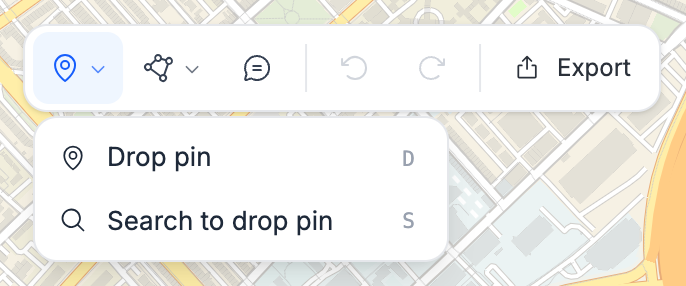
Click **Drop a pin** (shortcut `D`) in the map toolbar, then click the map. You can also right-click any empty point on the map and choose **Drop pin here**. Drop a pin mode will stay on until you select a location to drop the pin or press `ESC`.
The pin that is created will be labelled with the street name from the address. The description will be the pin's full address.
### Searching for an Address or Place
Click **Search** (shortcut `S`) at the start of the map toolbar to expand it into a search bar — **Search an address or place…**. Enter a street address, or the name of a business or landmark (e.g., "Fenway Park"), then pick a result to drop a pin there. A pin dropped from a place search is labelled with the place's name instead of its street name.
Next to the search field is a checkbox reading **Add** plus your workspace's default trade zone, like **Add 10 min drive**. Turn it on and every pin you drop from the search gets that trade zone automatically. It stays on until you turn it off. See [Trade Zones](/data-and-analytics/trade-zones.md).
### Duplicate Pin Detection
If the point you click resolves to a place already pinned in the study, that existing pin is reused rather than a second one stacking on top of it.
When you ask the agent for an address instead, it checks for pins within 50 meters of that point first and asks whether you want to use the existing pin or drop a new one. The same check applies when it draws a trade zone at a raw coordinate.
***
## Naming a Pin
A pin's on-map label is its handle, and it's editable everywhere the pin appears: click the handle in the map toolbar or in the side panel header, or right-click the pin and choose **Rename**. Handles have to be unique within a study across pins and shapes alike, so a name already in use is rejected.
When you ask the agent to drop a pin you can give it a name up front, and that name becomes the label instead of the address.
***
## Moving a Pin
Select a pin, then drag it. Pins are only draggable while selected. Anything anchored to the pin, including its trade zones and any analysis run on it, refreshes at the new location. If a linked refresh doesn't finish, an error message appears notifying you to move the pin again to retry.
A pin linked to a deal can't be dragged — move the deal from its own detail page instead.
***
## The Pin Side Panel
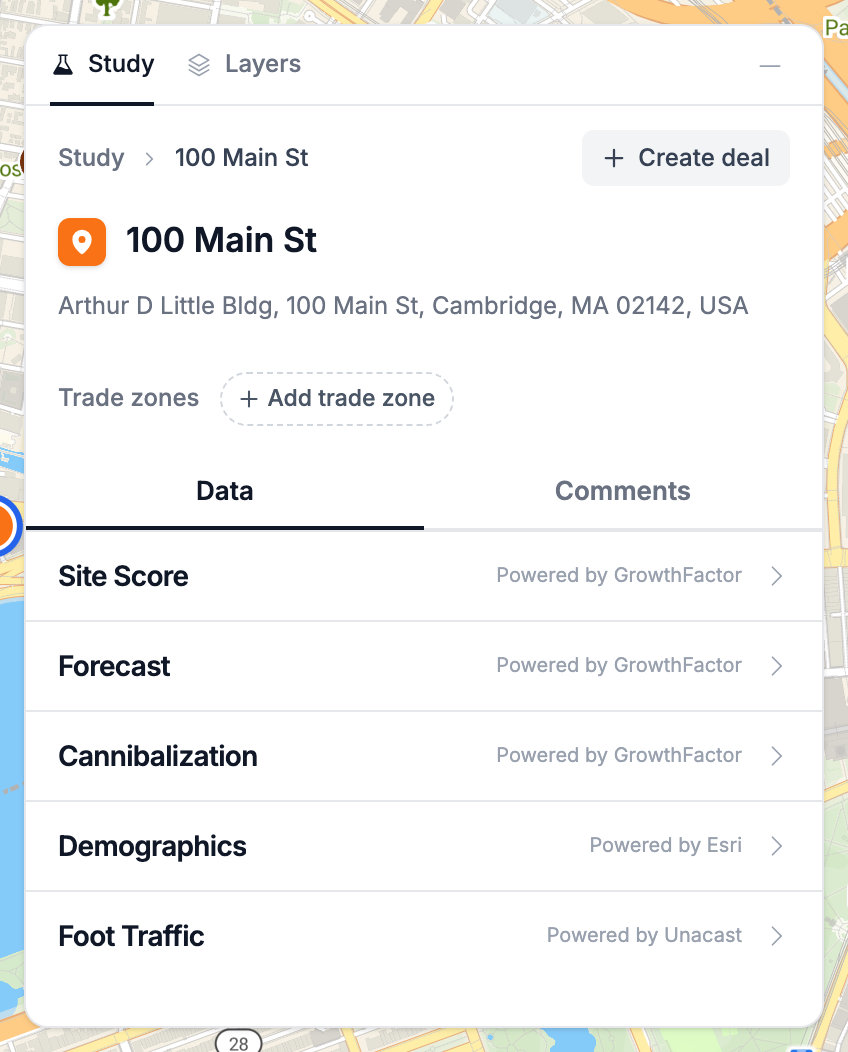
Selecting a pin opens its detail panel on the right:
* **Name** — the pin's handle, editable in place, with its address beneath (coordinates when no address resolved).
* **Trade zones** — every zone anchored to this pin, plus a button to add another.
* **Data** — what's available for the location. See below.
* **Comments** — the pin's thread, with a count badge on the tab.
***
## Data at a Pin
The **Data** tab is where you see what's available for that location. Open one and it stays in the panel, so you can keep several in view at once.
* **Custom Evaluator Agents** — a rating and written justification from the evaluator agents your workspace has written, with the history of every past run on this pin. See [Custom Evaluators](/data-and-analytics/custom-evaluators.md).
* **Site Score** — a lens-weighted score for the location, broken out by lens. Admins get an **Edit** shortcut into the lens configuration. See [GrowthFactor Score](/data-and-analytics/growthfactor-score.md).
* **Forecast** — a sales projection from one of your workspace's predictive models. Pick the model and fill in its inputs, and you can inspect the analogs behind the result. **View forecast history** shows every forecast recorded for the pin. See [Sales Forecast](/data-and-analytics/sales-forecast.md).
* **Cannibalization** — how much this pin's trade zone overlaps the other pins, stores, and deals in the study. See [Shapes](/study/shapes.md).
* **Foot Traffic** — visitation for the location.
* **Vehicle Traffic** — the nearest road's daily volume and hourly pattern. See [Vehicle Traffic](/data-and-analytics/vehicle-traffic.md).
* **AI Insights** — a short summary of recent development and growth news around the address, with links to its sources. It needs an address, so a location without one shows **Add an address to see AI insights for this location.** See [GrowthFactor Score](/data-and-analytics/growthfactor-score.md#ai-insights).
Demographics is measured across an area, so it comes from a shape rather than a pin.
***
## Styling a Pin
Selecting a pin swaps the draw toolbar for a style toolbar with a **Pin color** swatch, **Draw trade zone**, and **Delete**. Color is the only visual property a pin has — fill and border styling apply to shapes. The pin's label text turns dark on light colors such as yellow and green, so it stays readable.
***
## Commenting on a Pin
Open the **Comments** tab and type into **Add a comment to this pin…**, or right-click the pin and choose **Add comment**, which jumps straight to the tab with the box focused. Threads are flat — later entries post as replies into the same list under **Reply…**. See [Annotations and Comments](/study/annotations-and-comments.md).
***
## The Pin Context Menu
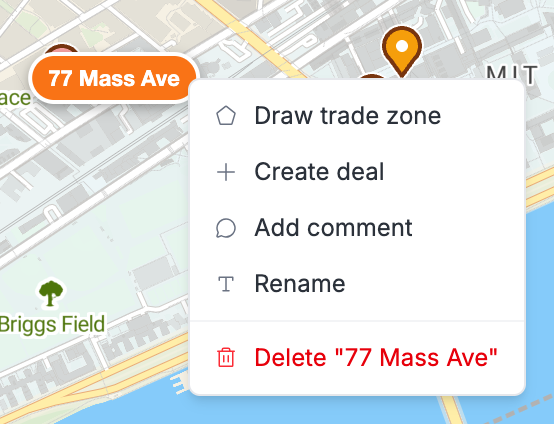
Right-click a pin for:
* **Draw trade zone**
* **Create deal**
* **Add comment**
* **Rename**
* **Delete "P1"** — the item names the pin it will remove
***
## Existing Stores on the Map
### How Your Stores Appear
Your portfolio from [My Stores](/manage/my-stores.md) draws on the study map as the **All Stores** layer, clustered and toggleable like any other layer. Stores aren't part of the study document — every teammate with workspace access sees the same stores, and selecting one is a local action that changes nothing for anyone else.
### The Site Panel
Click a store to select it. The side panel opens on that store, headed by its site ID and address, and the map toolbar offers **Draw trade zone** — you can anchor a zone straight to the store without dropping a pin on top of it. The panel also lists **Trade zones** already anchored to the store and lets you run any [Custom Evaluator Agents](/data-and-analytics/custom-evaluators.md) your workspace has written, **Cannibalization**, **Vehicle Traffic**, and **AI Insights** on it.
Right-clicking a store gives you just two items: **Draw trade zone** and **Update ID**. Stores have no comment threads.
### Editing Store Details
Edits in the panel write back to the store itself, so they show up everywhere that store appears:
* **Site ID** — the panel title; also reachable via **Update ID** on the context menu
* **Sales**
* **Sq ft**
* **Opened**
### Pins vs. Existing Stores
| Pin | Existing store |
| ---------------------------------------------- | ----------------------------------------- |
| A candidate location you place in a study | A location you already operate |
| Lives in the study | Lives in your workspace portfolio |
| Renameable, recolorable, deletable | Edit its ID, sales, sq ft, and open date |
| Has a comment thread | No comment thread |
| Its trade zones are deleted along with the pin | Its trade zones outlive any one study pin |
***
## Creating a Deal from a Pin
Click **Create deal** in the pin's side panel, or pick it from the pin's context menu. The deal is seeded from the pin — the handle becomes the title, the pin's address becomes the location, and any comments on the pin carry over as notes.
The deal starts in the **Searched** stage and replaces the pin on the map, drawn in its stage's color. Any trade zones anchored to the pin move over to the deal, so they stay linked. A deal with a trade zone is listed under **Deals & Stores** in the Study panel. See [Studies Overview](/study/overview.md).
Selecting the deal opens its detail view, showing both its site data and its deal fields. A **View deal** button takes you to the deal's page. See [Creating and Managing Deals](/deals/creating-and-managing-deals.md).
If the deal is later deleted, it shows as **Deleted deal** under **Deals & Stores**, and selecting it shows **Deal not available**.
{% hint style="info" %}
The deal is created in the study's workspace, which isn't always the workspace you have selected — a study shared with you from another workspace creates its deals there.
{% endhint %}
***
## Removing a Pin
Delete a pin from its context menu or the **Delete** button on the style toolbar. Deleting it also deletes any trade zone anchored to it. If the pin was created by an analysis, deleting it removes that whole analysis and everything else it produced.
Its comments go with it. Pinning the same spot again gives you a new pin, not the old one back.
***
## Asking the Agent
The agent can do all of the above. Try:
* "Drop a pin at 123 Main St and call it Site A"
* "Move P1 to 400 Oak Ave"
* "Make P1 orange"
* "What's the address of P2?"
* "Delete P3"
See [GrowthFactor Agent](/study/growthfactor-agent.md).
---
# Agent Instructions
This documentation is published with GitBook. GitBook is the documentation platform designed so that both humans and AI agents can read, navigate, and reason over technical content effectively. Learn more at gitbook.com.
## Querying This Documentation
If you need additional information that is not directly available in this page, you can query the documentation by asking a question.
Perform an HTTP GET request on the following URL with the `ask` and `goal` query parameters:
```
GET https://docs.growthfactor.ai/study/pins.md?ask=&goal=
```
`ask` is the immediate question: it should be specific, self-contained, and written in natural language.
`goal` is what the user is ultimately trying to achieve, the reason they need the answer. Sharing it helps GitBook give you a better, more relevant answer. A goal is most helpful when it describes the outcome the user wants rather than restating the question. For example, with `ask=how do I create an API token`, a goal like `automate deployments from our CI pipeline` lets GitBook tailor the answer to that use case.
The response will contain a direct answer to the question and relevant excerpts and sources from the documentation.
Use this mechanism when the answer is not explicitly present in the current page, you need clarification or additional context, or you want to retrieve related documentation sections.