> For the complete documentation index, see [llms.txt](https://docs.growthfactor.ai/llms.txt). Markdown versions of documentation pages are available by appending `.md` to page URLs; this page is available as [Markdown](https://docs.growthfactor.ai/study/growthfactor-agent.md).
# GrowthFactor Agent
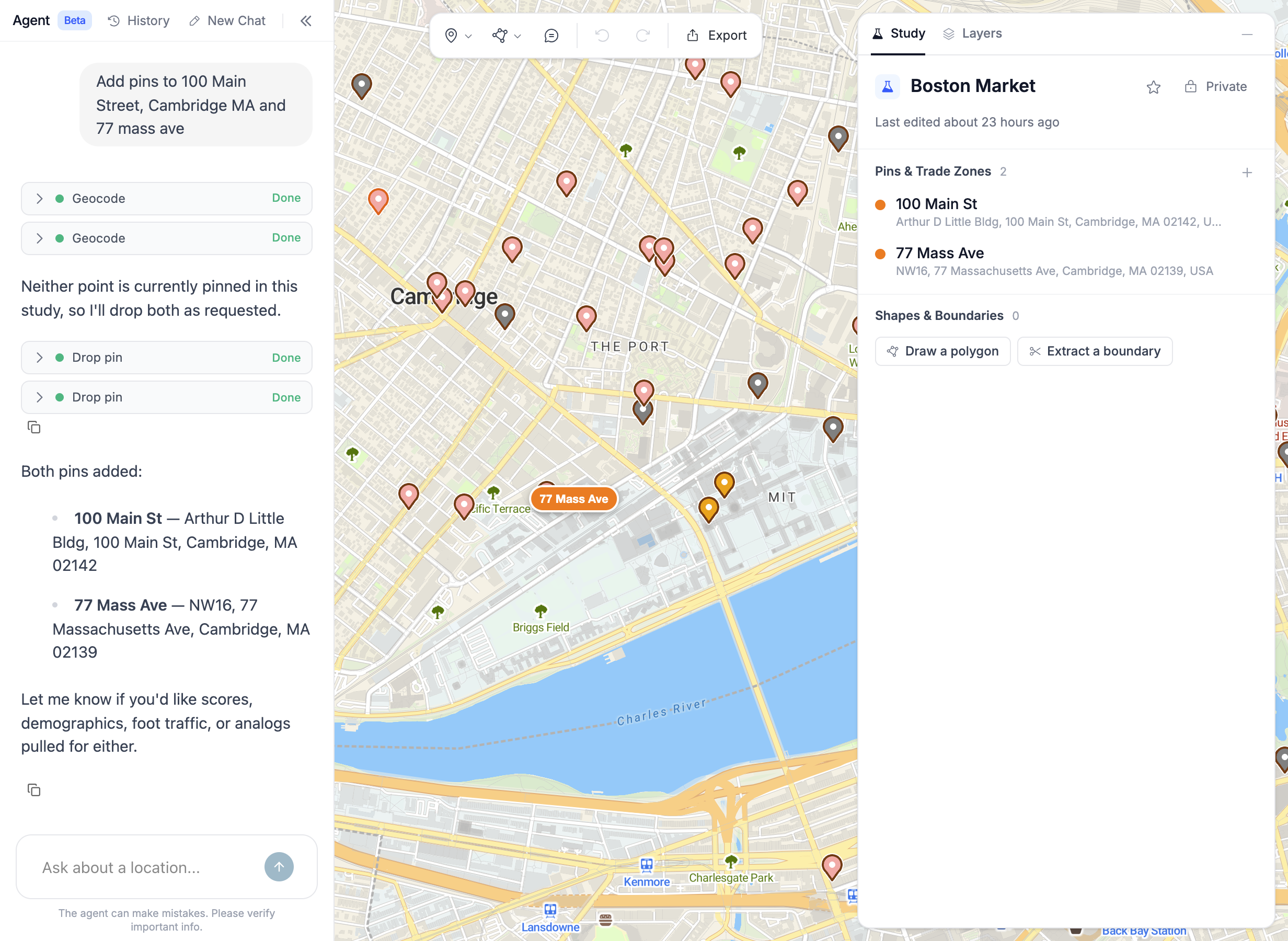
The **GrowthFactor Agent** is a conversational AI analyst built into the GrowthFactor app. Ask it a question in plain English and it carries out the work using the same tools you'd use yourself — finding sites, scoring locations, pulling demographics, running cannibalization, fetching foot traffic, checking zoning, and assembling trade zones — then surfaces the results as text, tables, and work on your study map.
***
## Opening the Agent
The agent lives inside a study. Open a study and the agent panel is already there on the left, beside the map. Get to one from the **Study** tab of the sidebar: **New study**, **All studies**, **Shared studies**, or anything under **Recents**. See [Studies Overview](/study/overview.md).
Three controls sit in the panel header:
* **History** — your saved conversations. See [Conversation history](#conversation-history) below.
* **New Chat** — starts a fresh thread.
* **Collapse Agent** — tucks the panel away and gives the map the full width. An **Agent** pill appears in the top-left corner to bring it back.
Drag the panel's right edge to widen it. Drag it narrower than its starting width and it collapses.
When the map has drifted from the study's pins and shapes, a **Fit map to study** button appears at the bottom of the panel. Click it to re-center the map on everything in the study.
A study with no conversation yet opens on a few starting points: prompts about your portfolio, and cards for the deals you touched most recently.
{% hint style="info" %}
This is the Market Planning experience. Without Market Planning access, the agent is a standalone **Agent** item in the sidebar and works against a map of your sites rather than a study.
{% endhint %}
## What you can ask
The agent is best at the kinds of questions you'd otherwise click through several screens to answer. A few starting points:
* **Find sites** — "Find me three candidate sites in Charlotte with strong daytime population and low cannibalization."
* **Screen a whole market** — "Find the 20 best spots in S1 for a drive-thru, ranked by daytime population." Every location in the area you drew gets evaluated at once, and the shortlist lands on your map. See [Market Query](/guides/market-query.md), in early access beta.
* **Score a location** — "Score 1234 Main St, Austin, TX."
* **Pull demographics** — "What's the median household income in a 3-mile ring around 500 5th Ave, NYC?"
* **Pull foot traffic** — "What's the foot-traffic trend for the Starbucks at 120 broadway?"
* **Pull vehicle traffic** — "What's the vehicle traffic near this pin between 8 and 9 AM?" Ask for a single hour, the full 24-hour profile, or the daily total.
* **Check zoning** — "How is this pin zoned, and is a restaurant allowed?" The agent returns the zone code, the jurisdiction, uses allowed as of right, uses allowed conditionally, prohibited uses, and building limits like height and setbacks. Treat it as a screening signal. Confirm with the jurisdiction using the zoning code link it provides.
* **Search the web** — "Is anything new being built near 500 5th Ave?" The agent searches the live web and answers with sources.
* **Profile an area you've drawn** — "What are the demographics inside S1?" Demographics, foot traffic, and the brands present all work on a drawn shape, not just a point.
* **Run one of your evaluators** — "What evaluators do we have?" then "Run the drive-thru evaluator on P1." It reports the verdict a location already has rather than re-running one, so its answer matches the card on the location. See [Custom Evaluators](/data-and-analytics/custom-evaluators.md).
* **Compare options** — "Compare the trade-area demographics for these three addresses."
* **Run a forecast** — "Forecast sales for this pin." The agent asks which of your workspace's models to run and collects the inputs that model needs. See [Sales Forecast](/data-and-analytics/sales-forecast.md).
* **Control what's on the map** — "Hide the deals layer," "Only show my Florida stores," or "Hide everything in the Searched stage." The agent can switch any layer in the study on or off. For pins, shapes, stores, deals, and deal stages, it can also show or hide individual rows. The change applies to your view of this study only, and it persists when you reopen the study.
* **Filter Available Listings** — "Only show retail for lease," "Listings between 2,000 and 5,000 SF," or "Reset the listing filters." The agent can filter by property type, transaction, status, and available size, and it can reset them. Filters you leave out keep their current values. If the layer is off, the agent turns it on. This is available when Available Listings is enabled for your account. The change applies to your view only and matches the filters in [Available Listings](/data-and-analytics/available-listings.md).
* **Change tracked brands and categories** — "What brands am I tracking?" or "Track Starbucks as Attracts and mark Walmart as Avoid." The change is personal to you and leaves the workspace defaults alone. See [Editing What's Shown](/data-and-analytics/points-of-interest.md#editing-whats-shown). Available where [Market Query](/guides/market-query.md) is available.
* **Work your pipeline** — "How many deals are in my pipeline right now?" or "Create a deal at 1234 Main St." It only writes to a deal or store when you ask it to, using values you gave it, and creating or updating a deal or site pauses for your approval first — see [Approving sensitive actions](#approving-sensitive-actions).
* **Ask how GrowthFactor works** — "How do I draw a trade zone?" or "What does the GrowthFactor Score measure?" The agent answers from GrowthFactor's product documentation and includes links to the pages it drew from.
Ask a broad question and it plans rather than stalls. "Where should I open next in Boston?" comes back with a shortlist of corridors to evaluate and a plan for how to compare them, so you can swap candidates before any analysis runs. Where [Market Query](/guides/market-query.md) is available, a question like this is screened across the whole area instead and comes back as a ranked shortlist on your map.
***
## How results show up
* **Text and tables** — answers appear inline in the chat, with tables for side-by-side comparisons
* **Tool cards** — each step the agent takes appears as its own card, marked **Running** then **Done**. Expand one to see exactly what it sent and what came back
* **Work on the study** — pins, trade zones, and shapes the agent creates are part of the study, listed in the **Study** panel under **Pins & Trade Zones** and **Shapes & Boundaries** and toggleable from the **Layers** tab. They behave like anything you drew yourself
* **Streaming responses** — a thinking indicator shows between submit and the first response, and answers stream in as the agent works
***
## Approving sensitive actions
Creating or updating a deal, creating or updating a site, deleting a pin, shape, or annotation, and sending a feature request all need your OK first. A card appears above the message box naming the action — **Create deal?**, **Update deal?**, **Create site?**, **Update site?**, **Delete map item?**, or **Delete annotation?** — along with the details it's about to use. Choose **Approve** to run it or **Cancel** to stop it.
If you ask it to create a site very close to one already in your portfolio, the card asks **Add another here?** instead, so you can confirm you want a second site there rather than ending up with an accidental duplicate.
When the agent proposes several of these at once, they show as a scrollable list above the message box. A bar at the top shows how many still need a decision, with **Approve all** and **Cancel all** buttons to decide the whole batch at once. Sending a new message instead cancels whatever's still pending.
***
## Building trade zones and boundaries on the map
The agent builds on your map. Everything it draws behaves like anything you drew yourself, so you can keep refining it or hand it off. For the mechanics by hand, see [Pins](/study/pins.md) and [Shapes](/study/shapes.md). What follows is how to ask for them.
* **Drop or move a pin** — "Drop a pin at 222 Third St, Cambridge," or "Move P1 to Back Bay." The agent geocodes the address itself, so you don't need to add the pin first, and anything linked to a moved pin refreshes to match.
* **Draw a trade zone** — "Draw a 10-minute drive-time zone around it." Works with drive-time, walk-time, ring, or foot-traffic definitions. Pointed at an address with nothing pinned there yet, it anchors the zone to a new pin and tells you it did.
* **Draw a trade zone on an existing store** — "Draw a 10-minute drive-time zone around my Springfield store." The agent anchors the zone to the store in your portfolio rather than dropping a duplicate pin.
* **Add a census boundary** — "Show me Travis County," "Add the ZIP code for 1234 Main St," or "Put the census tract around P1 on the map." The agent can place a state, county, place, ZIP code, census tract, or block group. Name the area or point to a pin, and the boundary is saved as a shape, styled the same as one you extract by hand. Asking for it again returns the shape already in the study. Rings and drive or walk times are trade zones, not boundaries.
* **Link a shape you already drew** — "Make S1 a trade zone for P2," or link it to one of your stores. Only shapes you drew by hand qualify; a shape an analysis produced can't be re-anchored.
* **Combine shapes into a territory** — "Merge the trade zones for my three downtown stores," "show me where S1 and S2 overlap," or "trim S1 by cutting out S2." Refer to shapes by their on-map label; each combine replaces its inputs with a single result.
### Finding your whitespace
Subtracting your coverage from the market you're planning against is the fastest way to see **uncovered demand**. Ask the agent to add the boundary you're planning against, or extract it yourself (see [Shapes](/study/shapes.md)). Then ask the agent to merge your store trade zones and cut the result out of it — what's left is the part nobody serves yet.
***
## Cannibalization
Point the agent at a candidate pin and it compares that pin's trade zone against **every other pin, drawn area, and existing store** in the study — not just a single pair.
* "How much would this new pin cannibalize my other candidates and existing stores?"
* "Would this pin overlap any of my portfolio stores?"
The result is a table: the overlap for each contributor plus a combined total. The agent adds no layer for cannibalization — the overlapping trade zones are already on the map as shapes, so you read the geography and the numbers side by side. Asked this way, the target always has to be a pin; to run it from a store, use the side panel described in [Shapes](/study/shapes.md).
{% hint style="info" %}
Both sides need a trade zone drawn in the study — pins and stores alike, with no fall back to the workspace default. Anything without one is skipped, and the agent will offer to draw the missing zones first.
{% endhint %}
***
## Annotating your work
The agent can mark up a study so your analysis is easy to follow later or hand to a teammate. See [Annotations and Comments](/study/annotations-and-comments.md) for how notes and comment threads behave.
* **Leave a note** — "Add a note explaining why we ruled this corner out," or ask it to reply in a thread that's already going. Notes it writes are attributed to the agent, not to you.
* **Rename** — "Rename S1 to 'North Austin.'" Names are capped at 16 characters and have to be unique within the study.
* **Restyle** — "Turn P1 green" or "Give S1 a dashed orange border." Pins take a color; shapes take a fill color, a fill opacity, and a solid, dashed, or dotted border.
* **Clean up** — "Delete P3," or ask it to remove a note you no longer need. Deleting always pauses for your approval first — see [Approving sensitive actions](#approving-sensitive-actions) — and if the thing was created by an analysis, the agent also warns you beforehand, since deleting it removes everything else that analysis produced.
***
## Conversation history
Each study keeps its own conversation. Reopen the study and your thread loads back exactly as you left it, so you can build on earlier turns instead of restating context.
**History** lists every conversation you've saved in the current workspace, newest first. Pick one to load it into the panel — do that inside a study and the study starts following that conversation instead. Hover a row to delete a conversation you no longer want; deleting is permanent.
As a conversation grows very long, the agent lets you know and suggests you ask it to summarize where you've gotten to, then start a **New Chat** with that summary.
***
## Memory
Separate from a single conversation's history, the agent **remembers useful context about you and your team across conversations**. Tell it once that you're focused on drive-thru sites, that daytime population matters most to your model, or that you're expanding in the Southeast, and it carries that forward the next time you talk — you don't have to repeat yourself.
* **What it remembers** — durable facts and preferences you share (your criteria, focus markets, how you like results framed), not the raw numbers from any one analysis.
* **Part yours, part your team's** — every memory is stored against both you and the workspace you were working in. Yours follow you into any workspace you open, and a teammate working in that same workspace can surface what you told the agent there.
* **Always improving your results** — the more it learns about how your team evaluates sites, the more tailored its analysis gets.
***
## Submitting feature requests
You can ask the agent to pass along a feature request or piece of feedback to the GrowthFactor team. The agent drafts a short title and description, then an approval card appears above the message box with the details it's about to send. Choose **Approve** to send it or **Cancel** to drop it. Nothing is filed without your approval. See [Approving sensitive actions](#approving-sensitive-actions).
***
## Workspace context
The agent reads context from the **active workspace** you're in:
* The **Workspace context** you wrote in Workspace Settings. See [Workspace Context](/getting-started/workspace-settings.md#workspace-context)
* Site Score lenses and weights
* Default trade-zone definition
* Demographic variables
* Brand-specific model defaults
If you're in a sub-workspace, the agent uses **that** sub-workspace's context, not the root workspace's. To run a question against a different workspace's context, switch workspaces first.
You can also ask the agent to use a **specific trade zone** in your question (e.g., "use a 5-minute drive time"), and it will use that instead of the workspace default for that turn.
***
## What the agent can see
The agent works with your own account and permissions — if you can't see a site, store, or study in the app, neither can the agent. A few specifics worth knowing:
* **Your portfolio** — the agent can read stores and deals from every workspace you have access to, not only the one you're currently in. Configuration like Site Score lenses and the default trade zone still comes from the active workspace.
* **Your conversation is yours** — a teammate opening the same study starts their own thread. They can't see your chat, and you can't see theirs.
* **What it remembers is shared with your workspace** — see [Memory](#memory) above. Anything you tell the agent can surface for a teammate working in the same workspace.
* **Read-only studies** — the agent panel doesn't appear in a study you only have view access to, or in an archived study. Unarchive the study to get it back.
***
## Tips for good results
* **Be specific about location** — full addresses or named places work better than vague descriptions
* **Specify the trade zone** if the default isn't what you want
* **Refer to what's on the map by its label** — "P1," "S1," or a name you gave it — rather than re-describing the location
* **Share feedback** — the agent is new and improving quickly; let us know what worked and what didn't at
***
## Agent vs. the MCP
The Agent is the best place to build a market strategy — it draws and combines trade zones on your study map, runs cannibalization against every pin and store in a study, and remembers your work across sessions. When you'd rather work inside the AI tool you already use, or turn a finished strategy into a committee-ready deck, reach for the [GrowthFactor MCP](/mcp.md) instead. See [MCP vs. the GrowthFactor Agent](https://docs.growthfactor.ai/study/pages/G8cg8CZGrLdFY2w6glZy#mcp-vs.-the-growthfactor-agent) for a full comparison.
---
# Agent Instructions
This documentation is published with GitBook. GitBook is the documentation platform designed so that both humans and AI agents can read, navigate, and reason over technical content effectively. Learn more at gitbook.com.
## Querying This Documentation
If you need additional information that is not directly available in this page, you can query the documentation by asking a question.
Perform an HTTP GET request on the following URL with the `ask` and `goal` query parameters:
```
GET https://docs.growthfactor.ai/study/growthfactor-agent.md?ask=&goal=
```
`ask` is the immediate question: it should be specific, self-contained, and written in natural language.
`goal` is what the user is ultimately trying to achieve, the reason they need the answer. Sharing it helps GitBook give you a better, more relevant answer. A goal is most helpful when it describes the outcome the user wants rather than restating the question. For example, with `ask=how do I create an API token`, a goal like `automate deployments from our CI pipeline` lets GitBook tailor the answer to that use case.
The response will contain a direct answer to the question and relevant excerpts and sources from the documentation.
Use this mechanism when the answer is not explicitly present in the current page, you need clarification or additional context, or you want to retrieve related documentation sections.